How to Scan a QR Code from an Image Online
QR codes are everywhere, but many people run into the same problem: the code they want to read is already saved as an image, screenshot, or on-screen graphic. In that situation, using a phone camera is not always practical. What you really need is a fast QR scanner that can upload the image, read the code, and show the actual content inside it.
That is where an online QR code scanner becomes useful. Instead of switching devices or installing an app, you can upload the QR image and decode it directly in your browser. This is one of the easiest ways to scan a QR code from an image, especially when the code is already on the same device you are using.
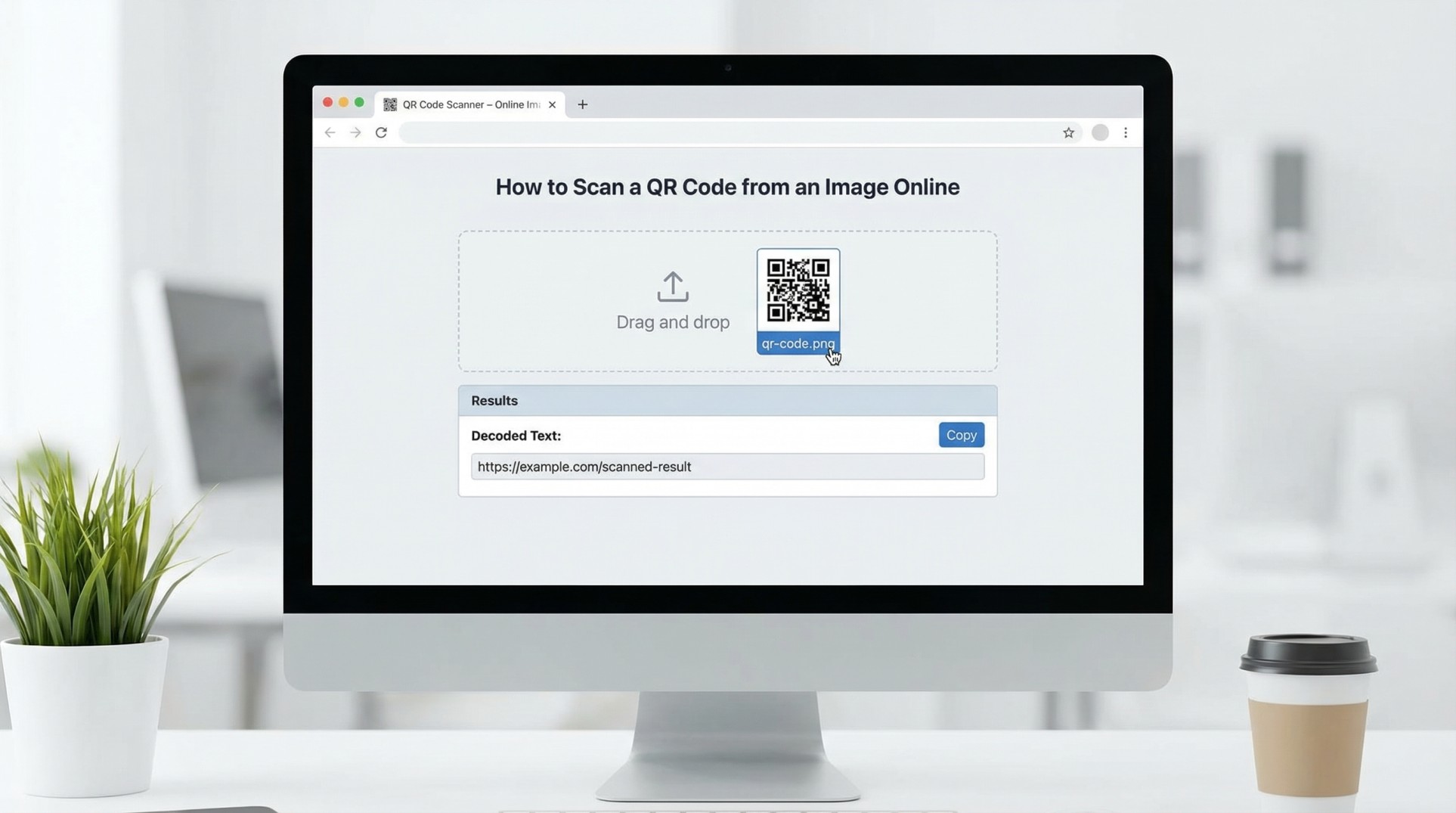
What a QR Scanner Actually Does
A QR scanner reads the visual pattern inside a QR code and converts it into usable information. That information may be plain text, a URL, contact data, or another encoded value. A good QR reader takes that hidden content and displays it clearly so you can review it before opening a link or copying the result.
For users who work with screenshots, downloaded graphics, or shared documents, an online tool can act as both a QR reader and a QR code decoder. You upload the file, the scanner reads the code, and the result appears as text.
Why Scan a QR Code from an Image
There are many situations where a QR code is not printed in front of you. Sometimes it appears in a PDF, a document, a social media image, or a screenshot from a chat. In those cases, you may want to scan a QR code online without needing another phone or tablet.
This is also common when people search for answers like “how to scan a QR code from your screen” or “how to scan a QR code on the same device.” The need is simple: the code is visible, but it is already part of the screen or saved image. An upload-based QR scanner online solves that problem directly.
How to Decode QR Code from Image Files
The easiest method is to use a browser-based tool. Save the QR code image, upload it, and let the scanner decode the content. Once processed, the tool will show the text, link, or value stored inside the QR code.
- Save or capture the QR code image.
- Upload it to the online QR scanner.
- Wait for the tool to decode the QR content.
- Review the text, URL, or result before using it.
This workflow is especially useful when you want to decode QR code from image files quickly and avoid mobile app friction.
When a QR Reader Online Is Better Than a Camera App
A camera app is useful when the code is physically in front of you. But when the QR code already exists as a screenshot, email attachment, document image, or on-screen graphic, a web-based tool is often faster. You can upload the file, use the scanner as a QR reader online, and inspect the decoded result immediately.
This extra step is often helpful for safety too. Instead of scanning blindly and opening a link right away, you can first see the QR content and confirm what it contains.
QR Code to Text: Why It Matters
Many users are not just trying to scan a code. They are trying to understand what is inside it. That is why terms like QR code to text, QR to text, and QR decoder matter. The practical goal is not the scan itself. The goal is to get readable output.
Once the QR code is decoded into text, you can copy it, inspect it, compare it, or decide whether to open the destination link. This makes an online QR scanner helpful for casual users as well as developers, support teams, and people who review shared digital content.
Final Thoughts
If you often receive QR codes in screenshots, documents, or downloaded image files, a browser-based QR scanner is one of the easiest tools to keep on hand. It helps you scan QR code from image files, decode the content clearly, and read the result without depending on another device.
Instead of guessing what a QR code contains, you can upload it, read it, and get the exact text in seconds. That makes the process faster, clearer, and more useful than trying to work around the image manually.
Try the QR Scanner
Upload any QR code image and decode the content instantly with our free online tool.
Use QR Scanner